
Most blank or broken iframes trace back to three culprits: a Content-Security-Policy frame-ancestors directive or X-Frame-Options header blocking your origin, a mixed-content mismatch (HTTP src on an HTTPS parent page), or an authentication/storage problem (cookies, SameSite policy, Storage Access API). Fix the right one and the embed loads. Miss the diagnosis and you can spend hours chasing the wrong fix.
Run these checks first, in order:
- Open the iframe
srcURL directly in a new browser tab. If it redirects to a login page, the content requires authentication and won't embed without a public or token-based URL. - Open DevTools → Network, reload, find the iframe request, and read its Response Headers for
X-Frame-OptionsorContent-Security-Policy. - Check the browser console for
"Refused to display"errors (framing policy) or mixed-content warnings. - Test in a clean incognito window with extensions disabled to rule out ad-blockers or privacy tools.
This applies whether you're embedding Figma design previews, Tableau dashboards, or interactive content like Megasports-arena's sports games. The iframe onerror event does not reliably fire for security-related blocks, so header inspection is your real diagnostic tool.
Pro Tip: Use IframeAudit to paste any URL and instantly see whether framing headers, CSP, or mixed content will block it — faster than reading raw DevTools output.
Key Takeaways
Fixing a broken iframe embed almost always starts with reading the response headers — everything else follows from what those headers say.
| Point | Details |
|---|---|
| Check framing headers first | Inspect X-Frame-Options and CSP frame-ancestors in DevTools or via curl -I before anything else. |
| Use official embed URLs | Platforms like Figma and Tableau serve embed endpoints with permissive headers; the regular page URL is often blocked. |
| Auth and cookies block cross-site embeds | Session cookies without SameSite=None; Secure won't send in iframe requests; use token-based or public embed URLs. |
onerror won't catch security blocks | Use header inspection (curl/Fetch) or IframeAudit to predict failures; JavaScript can't read blocked iframe internals. |
| Megasports-arena embed | Use the official src URL from the Share/Embed flow with allowfullscreen and loading="lazy" for a responsive, partner-ready embed. |
Table of Contents
- How do you debug a broken iframe embed step by step?
- Why do X-Frame-Options and CSP frame-ancestors block your embed?
- Why does an authenticated embed show a blank or login screen?
- Mixed content and browser extensions that silently kill iframes
- Provider-specific tips for Figma, Tableau, and similar platforms
- Safe workarounds when you can't change the framing headers
- Concrete commands and code snippets for header inspection
- Megasports-arena embedding: recommended settings for partners
- How do you make embedded iframes accessible, responsive, and fast?
- What security risks come with embedding and proxying?
- The real lesson most developers miss about iframes
- Embed Megasports-arena games and keep visitors on your site longer
- Sources
How do you debug a broken iframe embed step by step?
Start with the fastest checks, then go deeper only if needed. When an iframe that previously worked goes blank, the causes in order are: a changed framing policy, mixed-content or mis-provisioned assets, and stricter third-party storage or cookie rules.
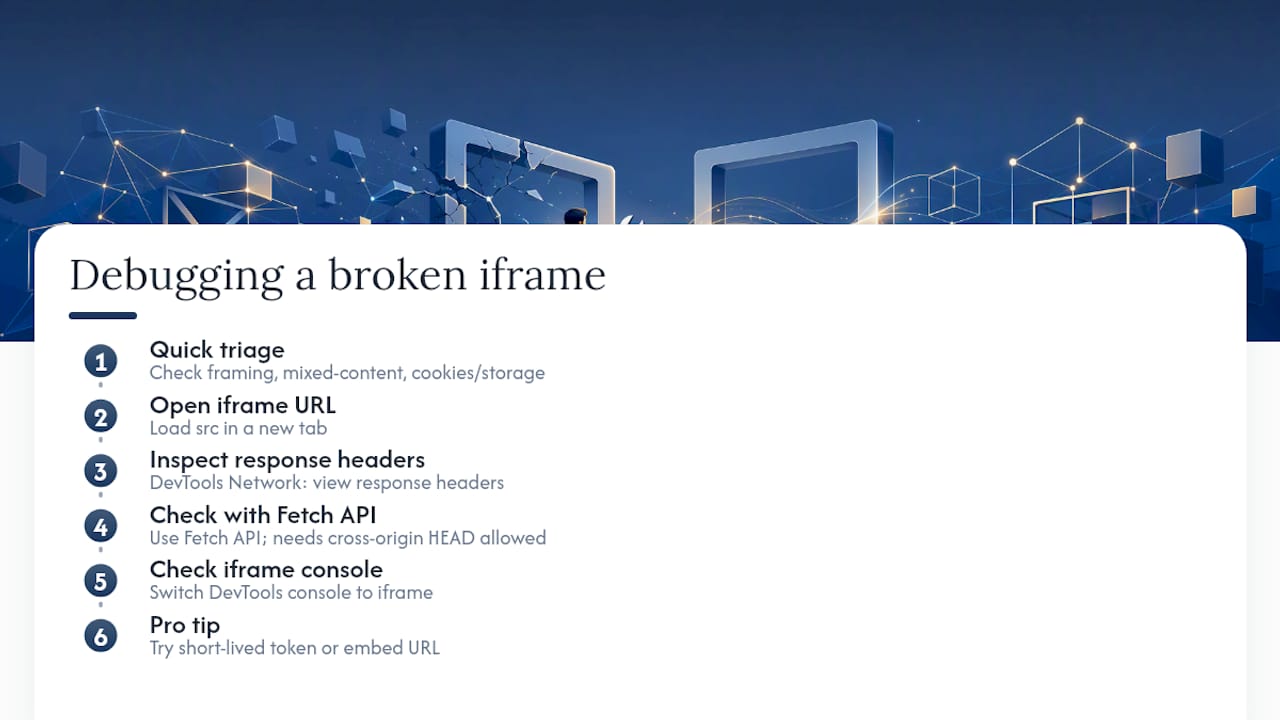
Step 1: Open the src in a new tab. If it loads fine there but not in the iframe, the problem is almost certainly a framing header or a cookie/storage restriction.
Step 2: Inspect response headers. In DevTools → Network, click the iframe's request and look at Response Headers. You're looking for X-Frame-Options or Content-Security-Policy. A curl command gives you the same view from the terminal:
curl -I https://example.com/embed
Step 3: Use the Fetch API to check headers programmatically (works when the server allows cross-origin HEAD requests):
fetch('https://example.com/embed', { method: 'HEAD' }).then(r => { console.log(r.headers.get('x-frame-options')); console.log(r.headers.get('content-security-policy')); });
Step 4: Check the frame's own console. Switch the DevTools console context to the iframe's origin. Mixed-content errors and blocked internal assets show up there, not in the parent console.
Pro Tip: If the vendor provides a short-lived embed token or a dedicated embed URL (Figma's /embed endpoint, Tableau's share URL), test with that URL specifically — it often has different framing headers than the regular page URL.
Why do X-Frame-Options and CSP frame-ancestors block your embed?
Both headers tell the browser whether a page may be loaded inside a frame. If the embedded origin sends either header excluding your origin, the browser refuses to render the frame — no fallback, no partial load, just a blank box.
X-Frame-Options has three values:
DENY— never frameable, by anyoneSAMEORIGIN— only frameable by pages on the same originALLOW-FROM uri— deprecated; ignored by most modern browsers
Content-Security-Policy: frame-ancestors is the modern replacement and supports multiple origins: frame-ancestors 'none', frame-ancestors 'self', or frame-ancestors https://trusted.example.com.
Many platforms serve a separate embed endpoint with permissive framing headers, while the regular page URL stays locked down. Always use the platform's official Share/Embed flow to get the correct src.
| Header value | Browser effect | Your remediation |
|---|---|---|
X-Frame-Options: DENY | Frame blocked for all origins | Request embed URL from vendor or use official widget |
X-Frame-Options: SAMEORIGIN | Frame blocked for cross-origin parents | Use vendor embed endpoint or negotiate allowlist |
CSP: frame-ancestors 'none' | Frame blocked universally | Same as DENY — vendor must change server config |
CSP: frame-ancestors 'self' https://your.site | Frame allowed for listed origins | Ask vendor to add your domain to their allowlist |
| No framing header present | Frame allowed by default | Check for mixed content or auth issues instead |
You cannot override these headers from the parent page. Client-side tricks won't work. Your options are: use the vendor's official embed URL, request an allowlist entry, or use an alternative integration (SDK, API, postMessage).
Why does an authenticated embed show a blank or login screen?
Embedded content that requires a user login will fail to load or display a login screen inside the iframe. The browser sends the iframe request without the parent page's session cookies when third-party cookie policies apply — which is now the default in most browsers.
Symptoms: the iframe shows a login prompt, a blank white box, or a "sign in to continue" page. It works fine when you open the src directly in a tab because that tab shares your session.
The technical cause is SameSite cookie policy. Cookies set without SameSite=None; Secure won't be sent in cross-site iframe requests. Fixes depend on who controls what:
- If you control the embedded server: set
SameSite=None; Secureon session cookies. AddHttpOnlyfor security. - If the content must be public: remove the authentication requirement for the embed endpoint.
- If the vendor supports it: use the Storage Access API — the embedded page can request cookie access with
document.requestStorageAccess(), but this requires a user gesture and browser support. - Best path: use the provider's official embed flow, which typically handles auth transparently via token-based URLs.
Pro Tip: If you're embedding live sports data or widgets, note that real-time trackers often use session tokens in the embed URL itself rather than cookies — check how live scoring systems handle authentication before assuming a cookie fix applies.
Mixed content and browser extensions that silently kill iframes
An HTTPS parent page cannot load an HTTP iframe. The browser blocks it as mixed content and logs a warning in the console: "Mixed Content: The page was loaded over HTTPS, but requested an insecure frame." The fix is simple: update the iframe src to https://.
Ad-blockers and privacy extensions are a sneakier cause. Tools like uBlock Origin, Privacy Badger, or browser-native tracking protection can block specific embed domains or script-based widgets without any console error — the iframe just stays blank.
Testing steps:
- Open an incognito window (extensions disabled by default in Chrome/Firefox) and reload the page.
- If the embed loads in incognito but not normally, an extension is the cause.
- Check the extension's block log or temporarily disable it to confirm.
- For production, note that a meaningful share of your users run ad-blockers, so a graceful fallback matters regardless.
Pro Tip: Mobile in-app webviews (Facebook, Instagram, LinkedIn) often apply their own content restrictions. Always test embeds inside the actual in-app browser, not just desktop Chrome.
Provider-specific tips for Figma, Tableau, and similar platforms
Figma embeds use a dedicated /embed endpoint, not the regular editor URL. Embedded views may trigger a Storage Access API prompt in some browsers, and the embed will fail silently if the viewer isn't logged in and the file isn't set to public. Check Figma's embed troubleshooting docs for the correct endpoint format and permission settings.
Tableau blank embeds almost always come down to two things: an incorrect src URL (using the dashboard URL instead of the share/embed URL) or the embedding library not loading as a module. Use the provider's share/embed flow or hosted CDN library — don't copy the browser address bar URL.
General pattern for any platform:
- Use the platform's official Share or Embed dialog to generate the src URL.
- Load the vendor's embedding library via the method they specify (module import, script tag, web component).
- Never paste a regular page URL into an iframe src and expect it to work.
- Check the vendor's changelog or platform news before assuming a previously working embed broke on your end.
Safe workarounds when you can't change the framing headers
When the vendor won't add your origin to their allowlist and there's no official embed URL, you have three engineering paths:
postMessage handshake: If the vendor supports it, the embedded page and parent communicate via window.postMessage(). No header changes needed, but the vendor must implement the listener. Best for interactive widgets where you need two-way communication.
Server-side proxy: Your server fetches the content and serves it from your own origin, bypassing framing restrictions entirely. This works technically, but carries real costs: you're responsible for content integrity, you may violate the vendor's terms of service, and credential leakage becomes a risk if the proxied content includes auth tokens. Use this only for content you own or have explicit permission to proxy.
Client fallbacks: When the embed can't load, show something useful. A screenshot with a direct link, an API-rendered summary, or a simple "View this content on [Provider]" card keeps the user experience intact.
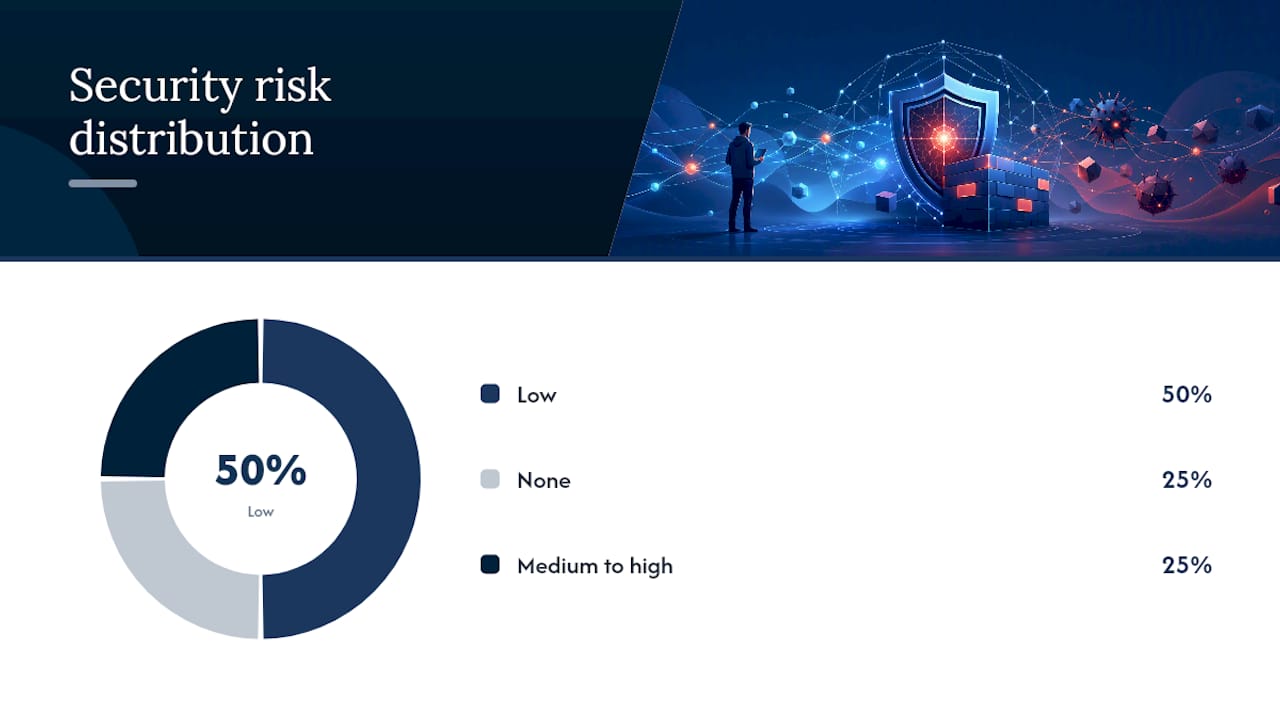
| Workaround | Ease of implementation | Security risk | Best use case |
|---|---|---|---|
| postMessage handshake | Medium — requires vendor support | Low | Interactive cross-origin widgets |
| Server-side proxy | High effort | Medium to high | Content you own or have permission to proxy |
| Image/screenshot fallback | Low | None | Static previews with a link to source |
| API-rendered HTML | Medium | Low | Data-driven embeds with a public API |
Concrete commands and code snippets for header inspection
Check headers with curl:
curl -sI https://example.com/embed | grep -i -E "x-frame-options|content-security-policy"
Fetch API header check (run in browser console):
fetch('https://example.com/embed', {method:'HEAD',mode:'no-cors'}).catch(()=>console.log('CORS blocked — check headers server-side'));
Note: mode:'no-cors' won't expose headers to JS, so use curl or DevTools for the actual header values. The Fetch call above is useful only to confirm whether the request reaches the server at all.
Best-effort iframe load detection (timeout + postMessage):
const iframe = document.querySelector('iframe'); const timer = setTimeout(() => { showFallback(); }, 5000); window.addEventListener('message', (e) => { if (e.data === 'embed-ready') clearTimeout(timer); });
This pattern works only if the embedded page sends a postMessage on load. Without vendor cooperation, the timeout fires regardless of whether the frame loaded or was blocked — because the onerror event doesn't fire reliably for security-related blocking.
Testing checklist:
- Chrome, Firefox, and Safari (framing behavior differs slightly)
- Incognito / private mode
- Mobile in-app webviews (iOS Safari WebView, Android Chrome Custom Tabs)
- With and without common ad-blockers enabled
- Use IframeAudit for a quick header-based blocking report
Pro Tip: Run curl -I against both the regular page URL and the embed URL for the same content. The difference in headers often explains exactly why one works and the other doesn't.
Megasports-arena embedding: recommended settings for partners
Partners embedding Megasports-arena content should use the official embed src URL from the platform's Share/Embed flow — not a copied browser URL. The embed endpoint is configured to allow framing from partner origins; the regular game page URL may not be.
Recommended iframe attributes for partner sites:
allowfullscreen— enables full-screen mode for game contentloading="lazy"— defers load until the frame is near the viewporttitle="Megasports Arena — [Game Name]"— required for accessibility- Avoid
sandboxunless your security policy requires it; if you do use it, includeallow-scripts allow-same-originat minimum, and read the security note below before combining those two flags - Use a responsive CSS container (aspect-ratio or percentage width) rather than fixed pixel dimensions
For allowlist support or custom integration questions, contact Megasports-arena through the platform's partner page. Partners who need to verify their origin is allowlisted before going live should reach out before deployment, not after.
Pro Tip: Test your Megasports-arena embed in incognito and on mobile before launch. The Sports Match intro page shows the expected embed behavior and is a useful reference for sizing and layout.
How do you make embedded iframes accessible, responsive, and fast?
Accessibility starts with the title attribute — every iframe needs one that describes its content (title="Figma design preview — Homepage wireframe"). For keyboard and screen-reader users, also provide a visible text link to the source content as a fallback. The MDN iframe reference documents additional ARIA considerations for embedded content.
Responsive sizing works best with an aspect-ratio container:
.embed-container { position: relative; padding-bottom: 56.25%; height: 0; overflow: hidden; } .embed-container iframe { position: absolute; top: 0; left: 0; width: 100%; height: 100%; }
Fixed pixel heights break on small screens and inside flexible layouts. Use percentage widths and CSS aspect-ratio instead.
Performance: add loading="lazy" to iframes below the fold. Avoid synchronous blocking scripts inside the embed when you control the embedded content. For embeds that aren't immediately visible, a lightweight placeholder with a "Load content" button reduces initial page weight.
What security risks come with embedding and proxying?
The same headers that frustrate developers — X-Frame-Options and frame-ancestors — exist because iframes are a classic clickjacking vector. An attacker embeds a target page in a transparent iframe overlaid on a fake UI, tricking users into clicking something they can't see.
The sandbox attribute restricts what an embedded page can do. Common flags:
allow-scripts— permits JavaScript executionallow-same-origin— lets the frame access cookies and storage as if same-originallow-forms— permits form submissionallow-popups— permits opening new windows
Never combine
allow-scriptsandallow-same-originon untrusted content. Together, they let the framed page escape the sandbox entirely by removing the sandbox attribute via script.
Proxying carries its own risks. If the proxied content includes authentication tokens, session data, or user-specific responses, your proxy becomes a credential relay. Content integrity is also your responsibility — the vendor can change their content and your proxy serves the stale or modified version. When a vendor offers an official integration path, use it.
The real lesson most developers miss about iframes
The parent page has almost no visibility into what happens inside a frame. Browsers purposefully withhold detailed error information from the parent page to prevent security probing — which means your JavaScript can't catch a framing failure the way it catches a network error. You can't inspect iframe.contentDocument across origins. The onerror event won't tell you the frame was blocked.
That's not a bug. It's the security model working as designed. The practical implication: design for failure from the start. Use official embed URLs, communicate with vendors before you need an allowlist entry, and build a fallback UI that gives users something useful when the embed can't load. The Sports Match how-to page is a good example of accessible fallback content — a direct link and text description that works even when the embed doesn't.
Iframes are powerful, but they're not transparent windows. Treat them as a trust boundary, not a shortcut.
Embed Megasports-arena games and keep visitors on your site longer
Sports publishers and fan sites that embed Megasports-arena's free-to-play fantasy games — including Sports Rummy, Sports Hash, and prediction contests — give visitors a reason to stay past the headline. The games cover MLB, NBA, NFL, NHL, and more, with leaderboards, rewards points, and archived results that bring players back repeatedly.

The embed setup is straightforward: use the official src URL from the platform's Share/Embed flow, add allowfullscreen and loading="lazy", wrap it in a responsive CSS container, and you're live. No proxying, no custom auth setup, no server-side configuration. Partners who want to verify their origin is allowlisted or explore co-branded options can start at Megasports-arena. Check the active contests page to see what's live right now and pick the game that fits your audience best.
Sources
The sources below back the diagnostic sequence and provider-specific guidance in this guide:
- Figma embeddings troubleshooting
- MDN: iframe element
- Embed blocked — Custom iFrame documentation
- iFrame blank troubleshooting script — Alphonso Labs
- IframeAudit — test if a URL can be embedded
- How to detect iframe failures due to X-Frame-Options or CSP - Stack Overflow
For live widget embeds and real-time data considerations, BetsyScore's guide to live match trackers covers the UI and data patterns relevant to embedding near-real-time sports experiences.